Getting started guide
Getting started on Suny as an installer
From sign-up to a quote in your client's hands in about five minutes: two for your account and setup, three for the quote. Each step has a button that takes you straight to the screen.
Create your account
about 1 minute
The quickest way in is Sign up with Google: Suny gets your confirmed email and name from Google, so you only add your business name and city and tick the agreement. No password, no confirmation email.
With email instead, fill in your own name, business name, email, phone (optional), a password of at least 8 characters and the city you work in. Tick the Installer Agreement and Privacy Policy, then Create account. Suny emails a confirmation link; you can carry on before clicking it.
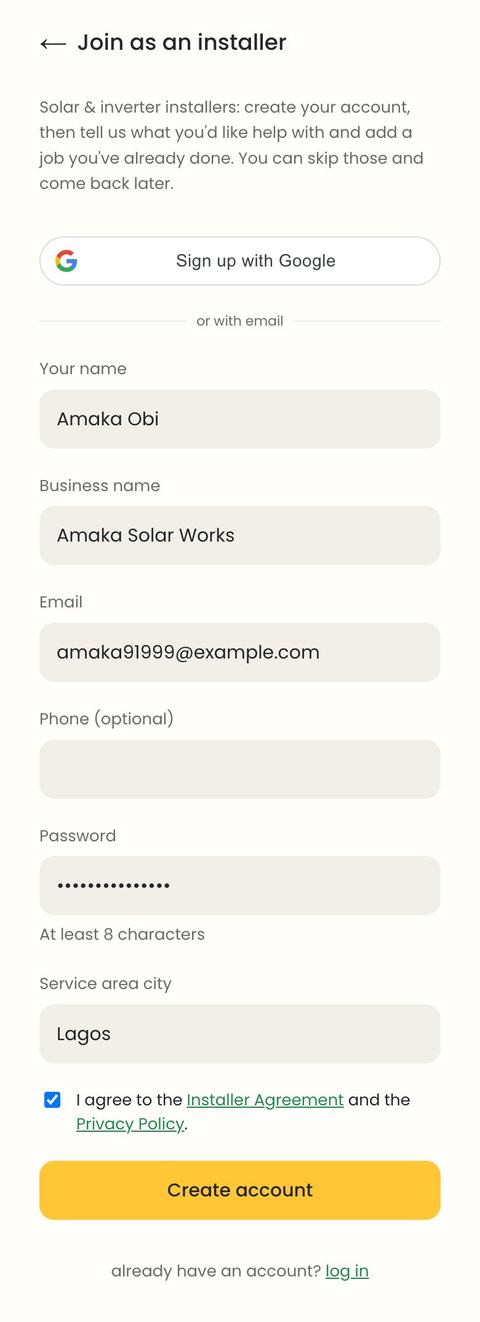
Already on Suny? Log in has the same Google button. The Suny installer app uses the same sign-in.
Four short setup steps
about 1 minute
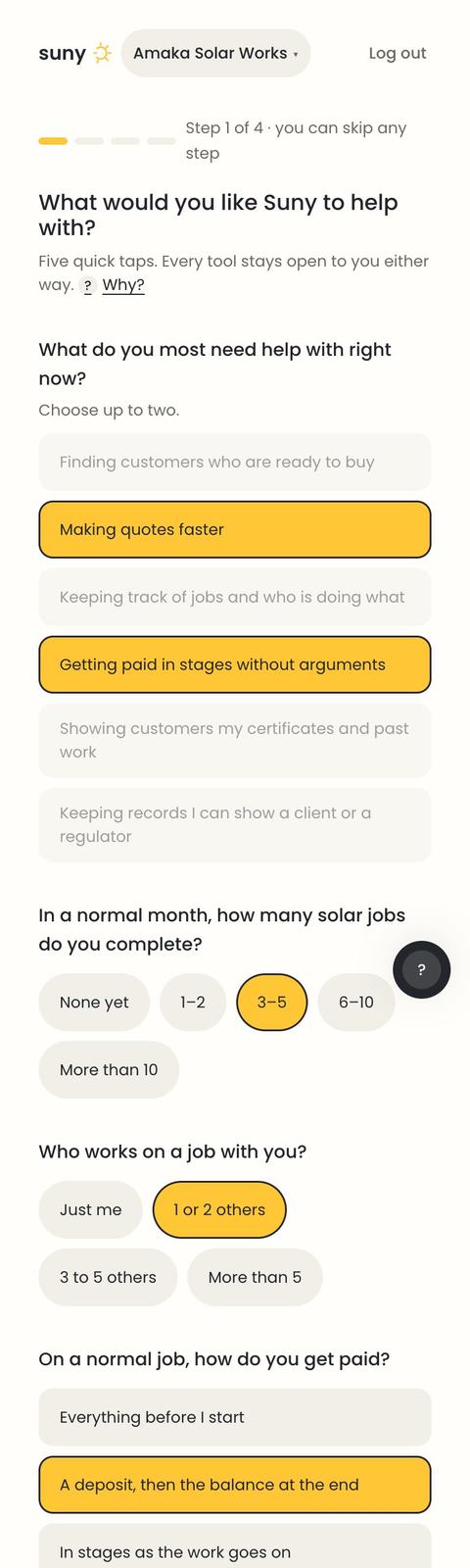
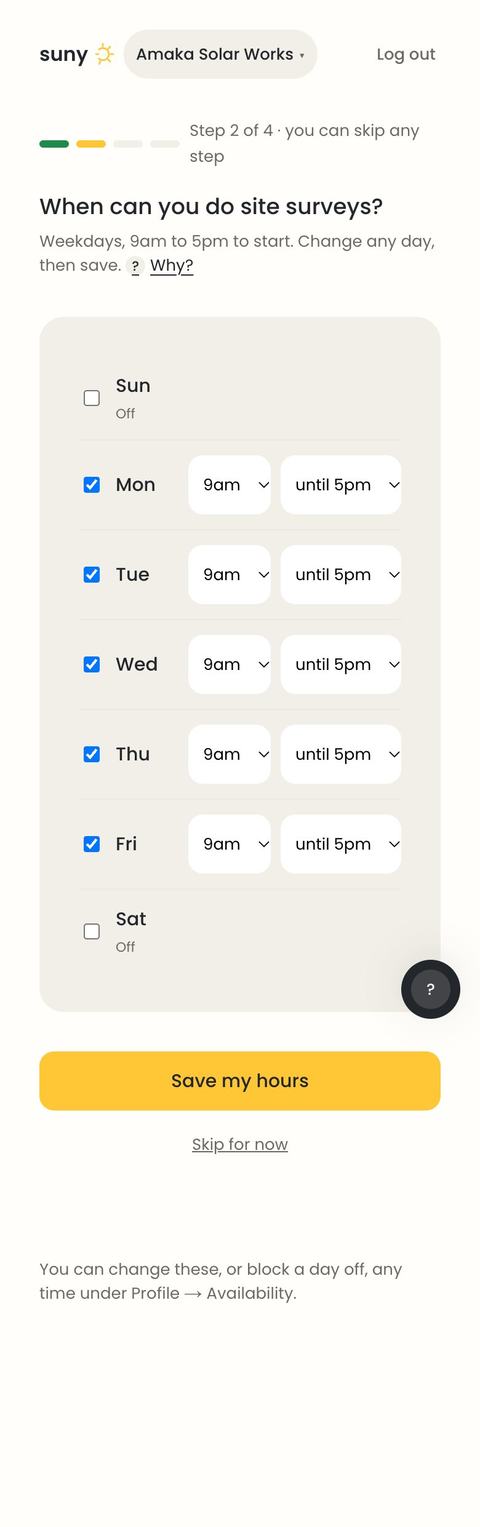
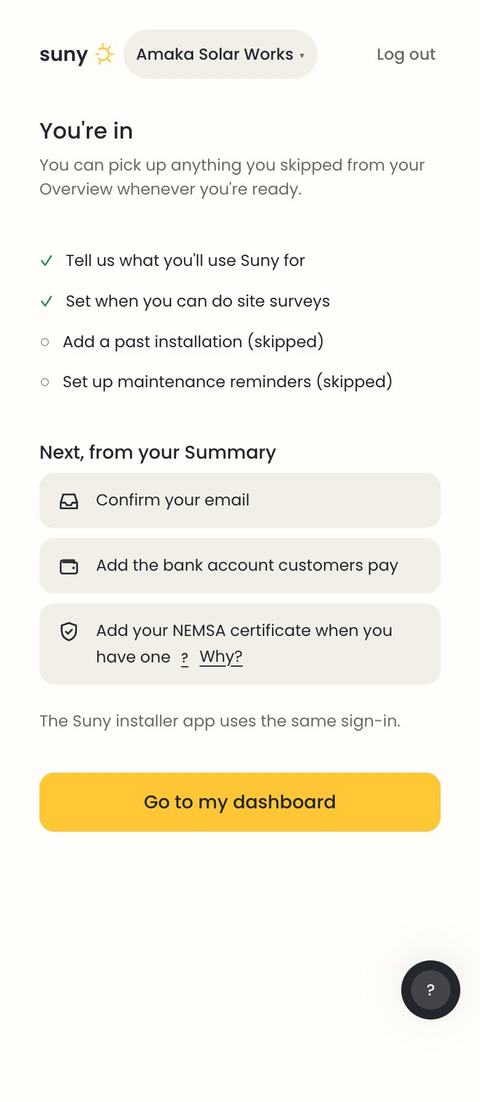
Right after sign-up, Suny asks four things, one per screen. Every step has Skip for now; whatever you skip waits on your Overview.
- What you'd like help with: five tap questions. Every tool stays open whatever you answer.
- When you can do site surveys: weekdays 9am to 5pm are filled in; change any day and Save my hours. Customers can only book a survey inside these hours.
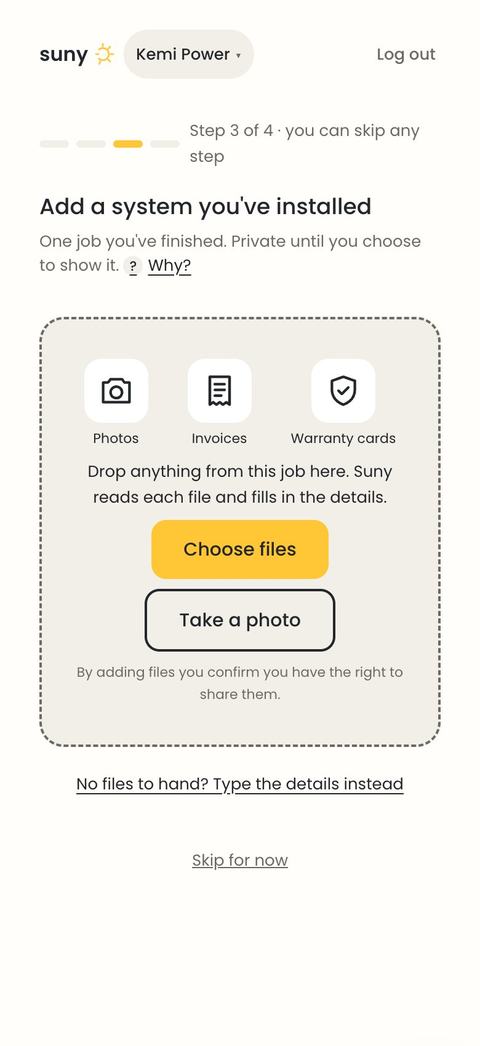
- A system you've already installed: drop in photos, invoices or warranty cards. Suny reads them and fills in the details, and a yellow link brings you back to setup. No files to hand? Type the details instead.
- Maintenance reminders: a suggested service schedule for that system.
Send your first quote
about 3 minutes
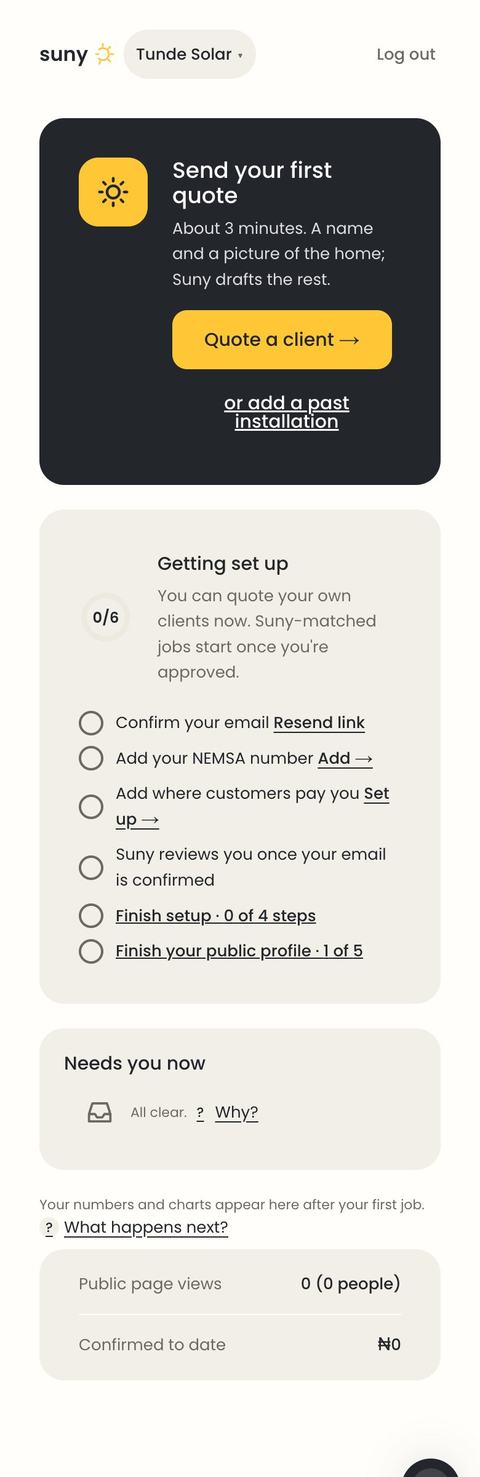
Overview opens on Send your first quote. Tap Quote a client, or use + New job → Quote a client from Jobs any time.
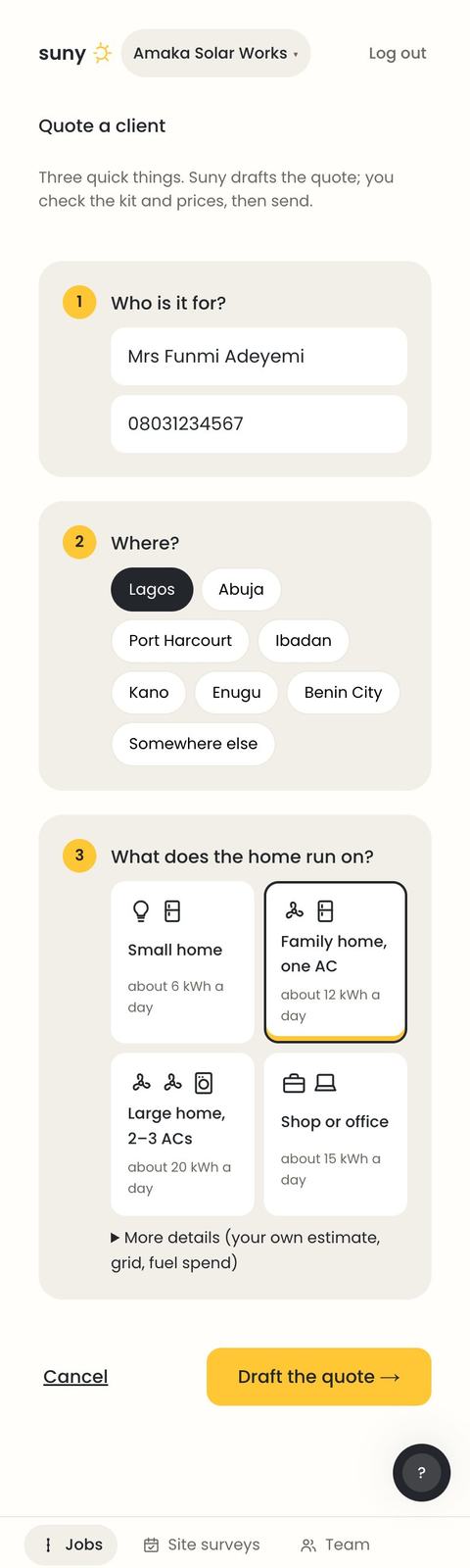
Quote a client is one screen: who it's for (name, and WhatsApp if you want to send the link there), where (a city), and a picture of the home. Your own load estimate, grid band and fuel spend sit under More details. Tap Draft the quote.
Build the quote
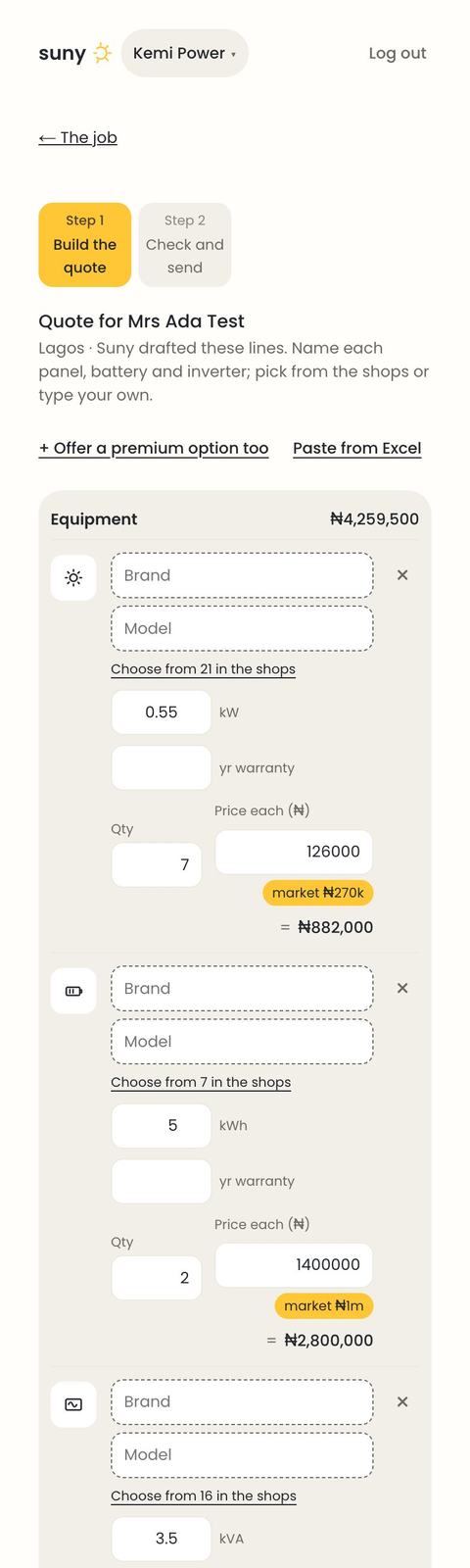
Suny drafts the lines in whole units, the way you'd buy them (for a family home with one AC: 7 × 550 W panels, 2 × 5 kWh batteries, 1 × 3.5 kVA inverter), laid out like an invoice: Equipment, Mounting & wiring, Installation & services, and the total pinned at the bottom. Suny's prices are all-in, so an empty section says Included. Put your own price on the Installation & labour line. Edits save themselves as you go.
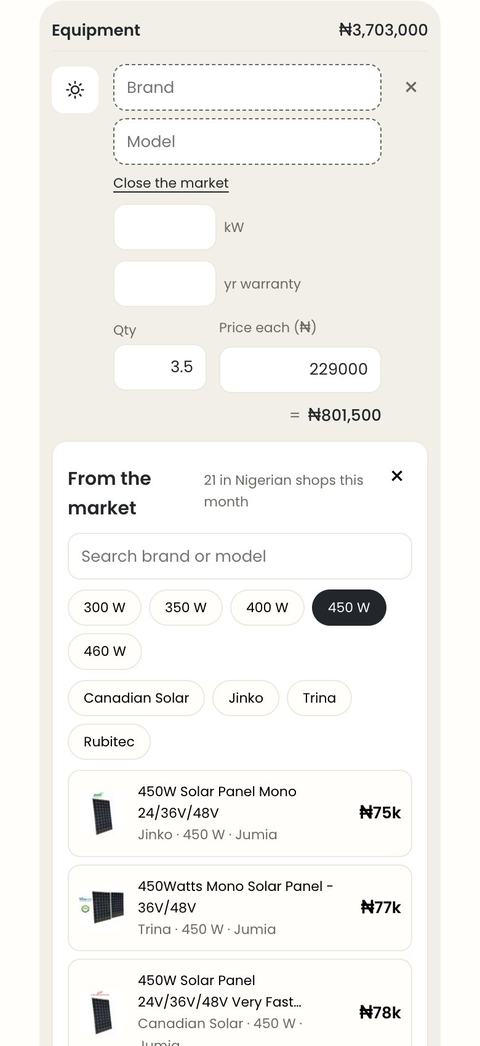
For each panel, battery and inverter, tap Choose from N in the shops: pick a size, a brand, then a listing with the shop's photo and this week's price. Picking fills brand, model and size. You can still type anything that isn't listed.
- + Offer a premium option too adds a second option over the same table.
- Paste from Excel turns copied rows into lines.
- + Add a discount, a VAT (7.5%) tick, and Save these lines as a kit for next time.
Check and send
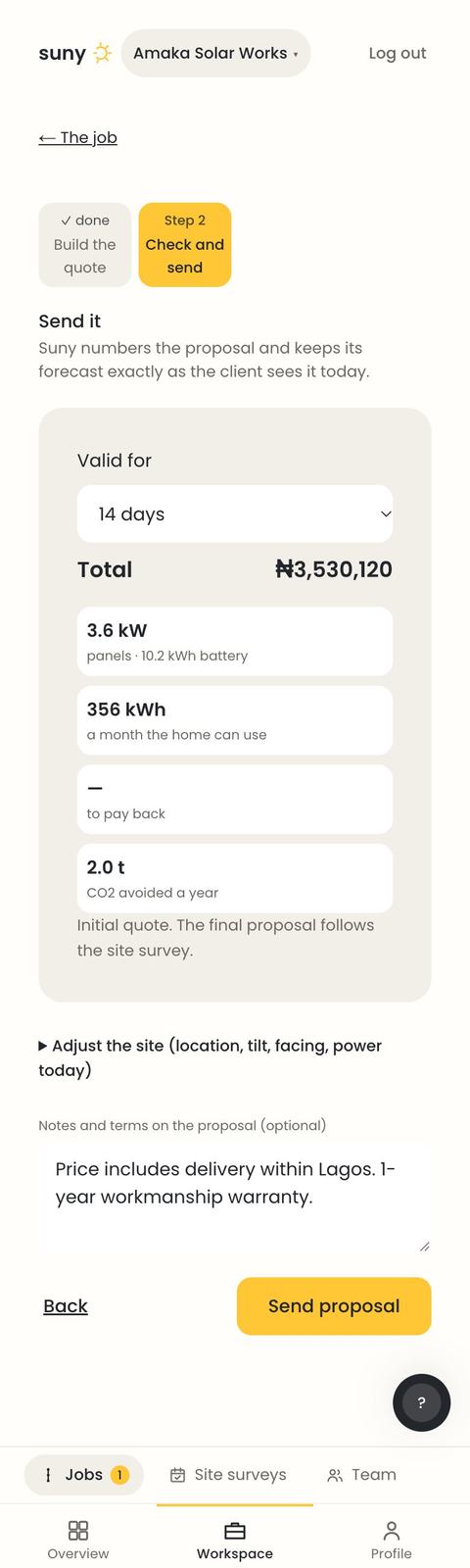
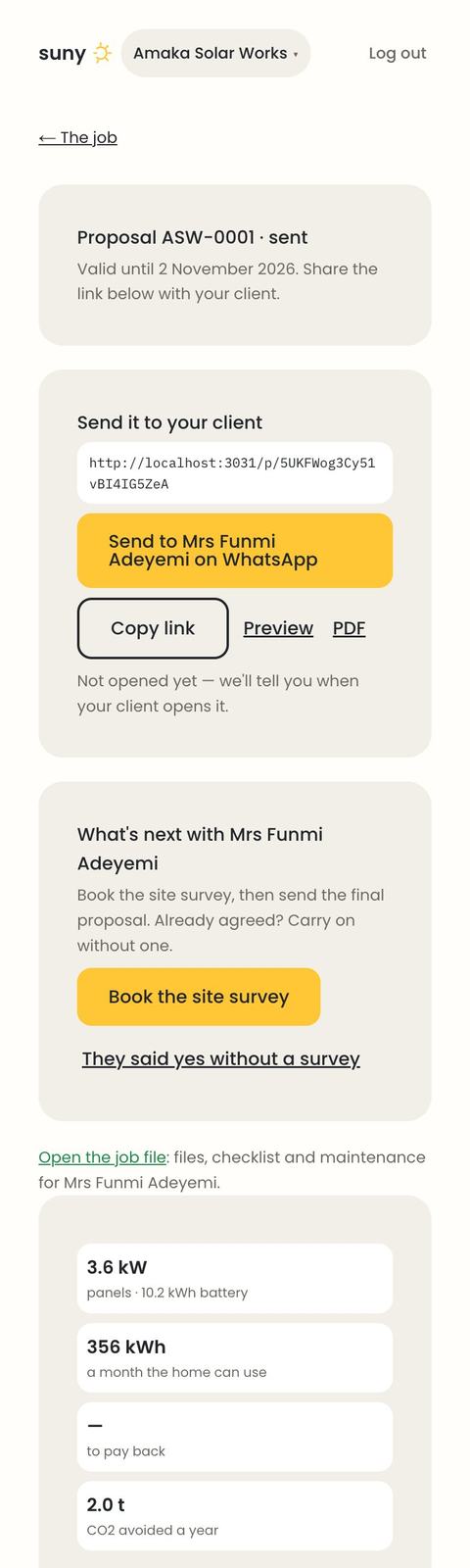
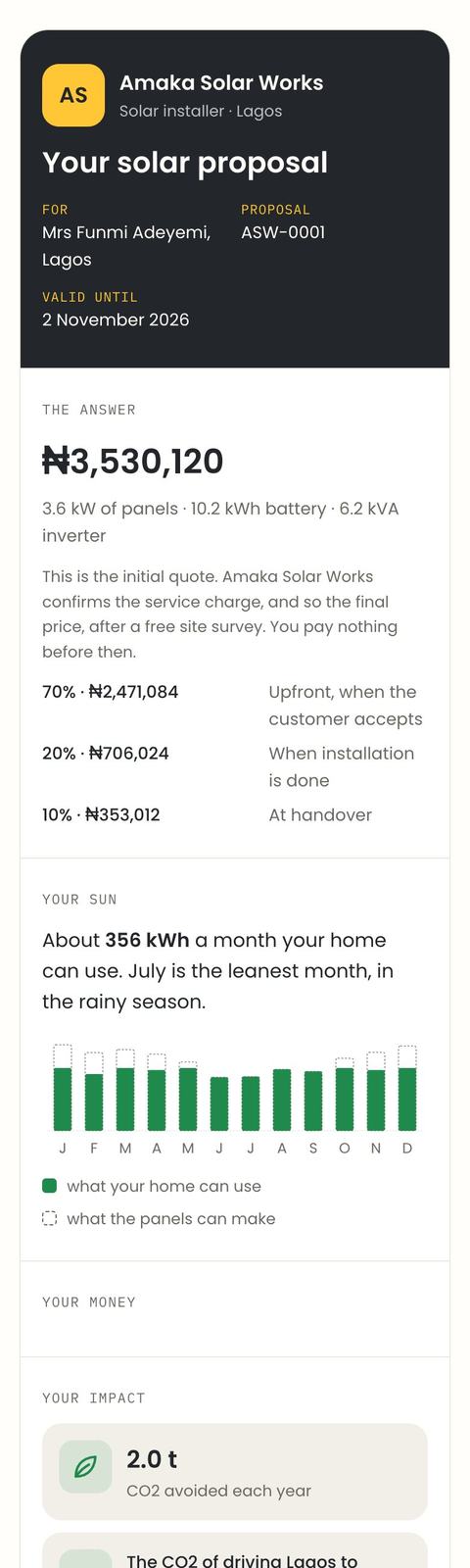
Choose how long the price is valid, add notes or terms if you like, and tap Send proposal. If something is missing, a red box says exactly what, with Fix it in the quote. Once sent, you get a link: Send on WhatsApp, copy it, or open the PDF. Suny tells you when your client opens it.
Get approved and get paid
You can quote your own clients from minute one. Jobs Suny matches to you start once Suny has approved you. The Getting set up card on Overview is your one checklist: confirm your email, add your NEMSA number, add where customers pay you, Suny's review, any setup step you skipped, and your public profile.
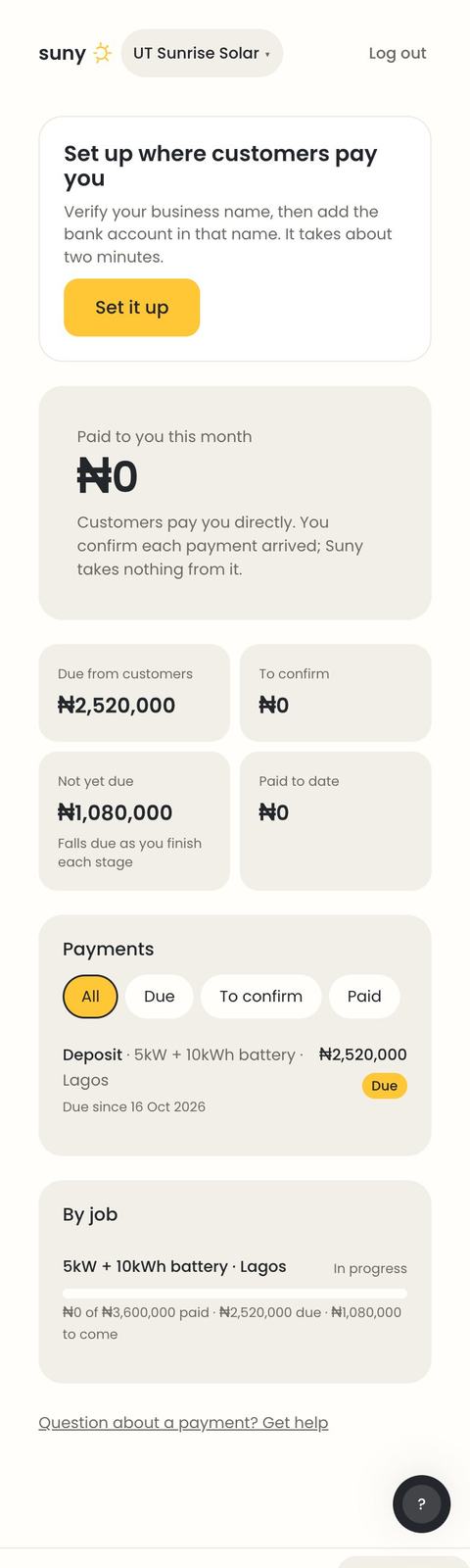
Where customers pay you: customers pay straight into your bank; Suny never holds the money. Enter your verified name (CAC or NIN) and the account. For now a person at Suny checks them, usually within a working day, and emails you. A final proposal with a deposit can't be sent until this is set.
Jobs: every quote, project and past install
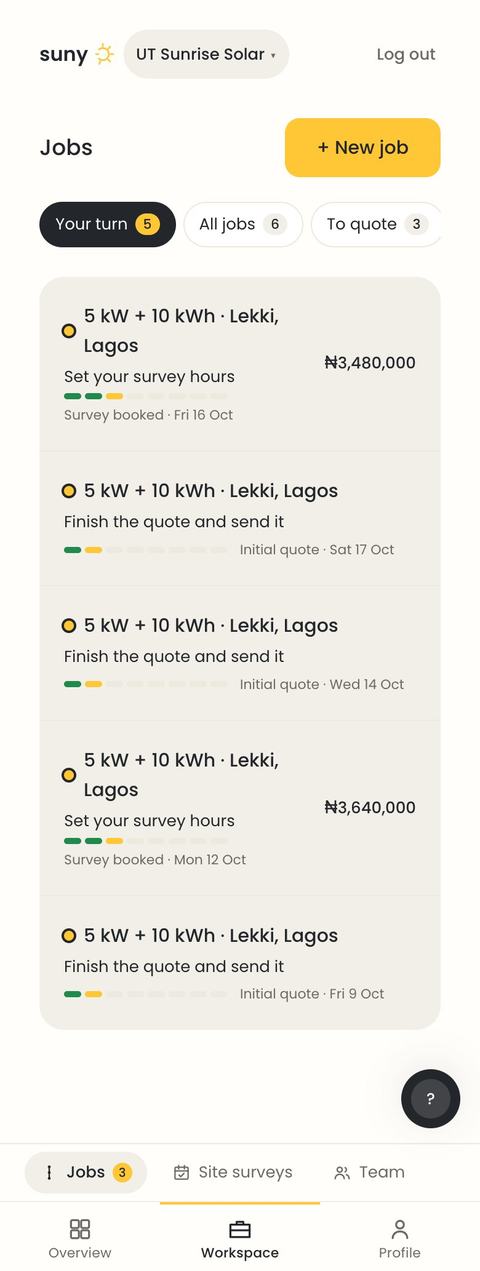
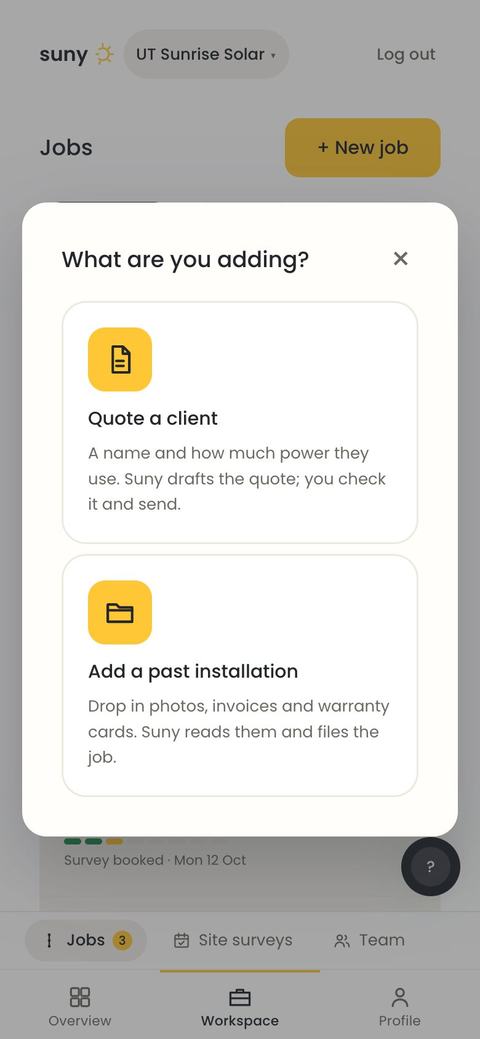
Every job in one list, with filters: Your turn, All jobs, To quote, With the client, Installing, Done, Past installs. Each row shows what's next and a bar of its stages. + New job offers two things: quote a client, or add a past installation.
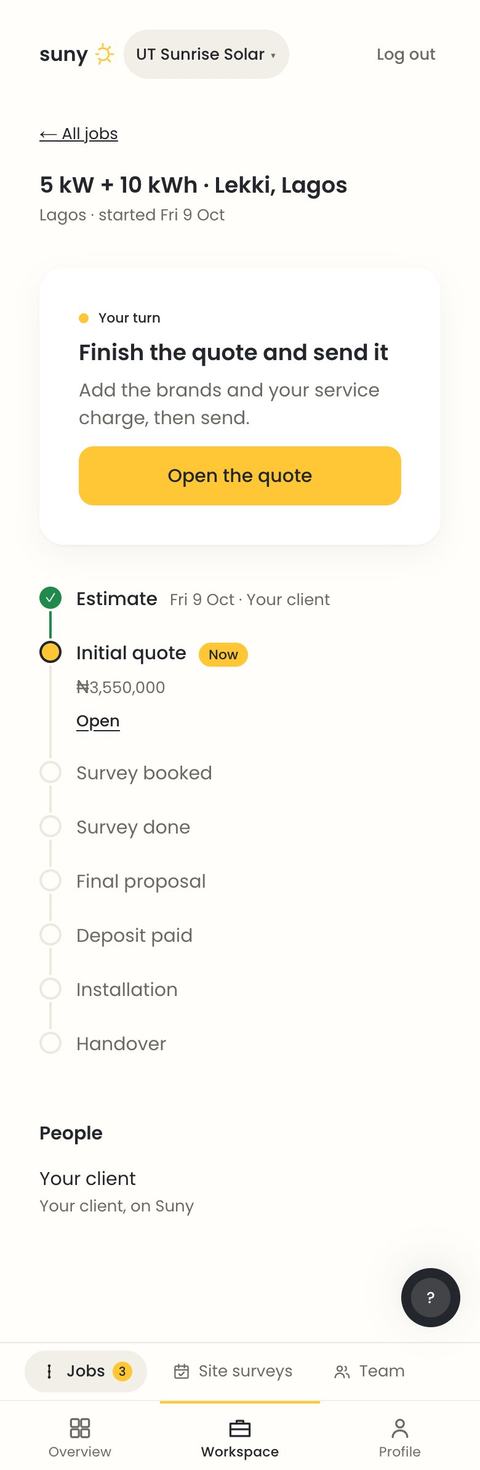
Opening a job shows one page for it: what's yours to do now, then the stages from estimate to handover.
Add a past installation
about 1 minute
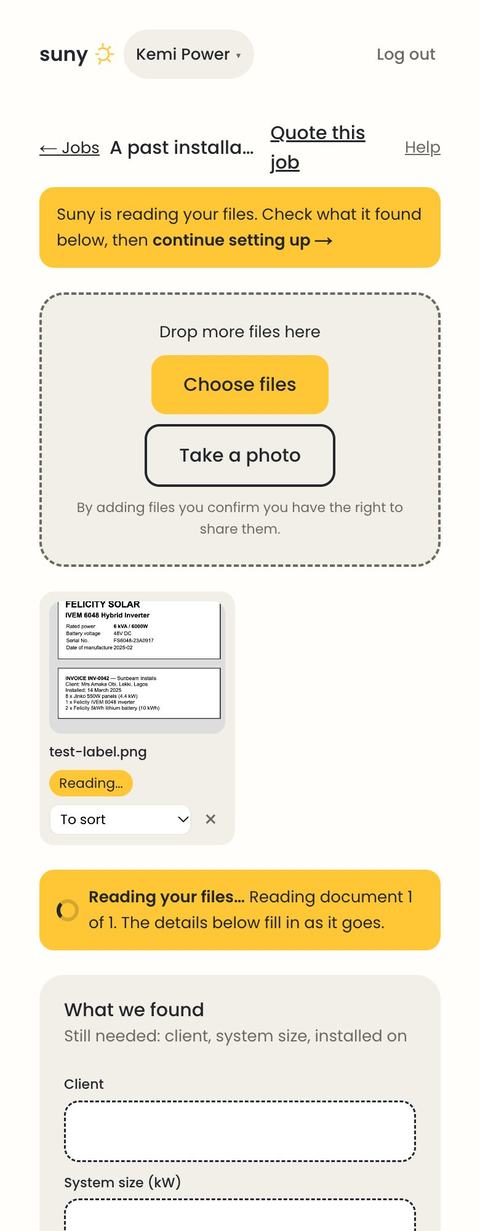
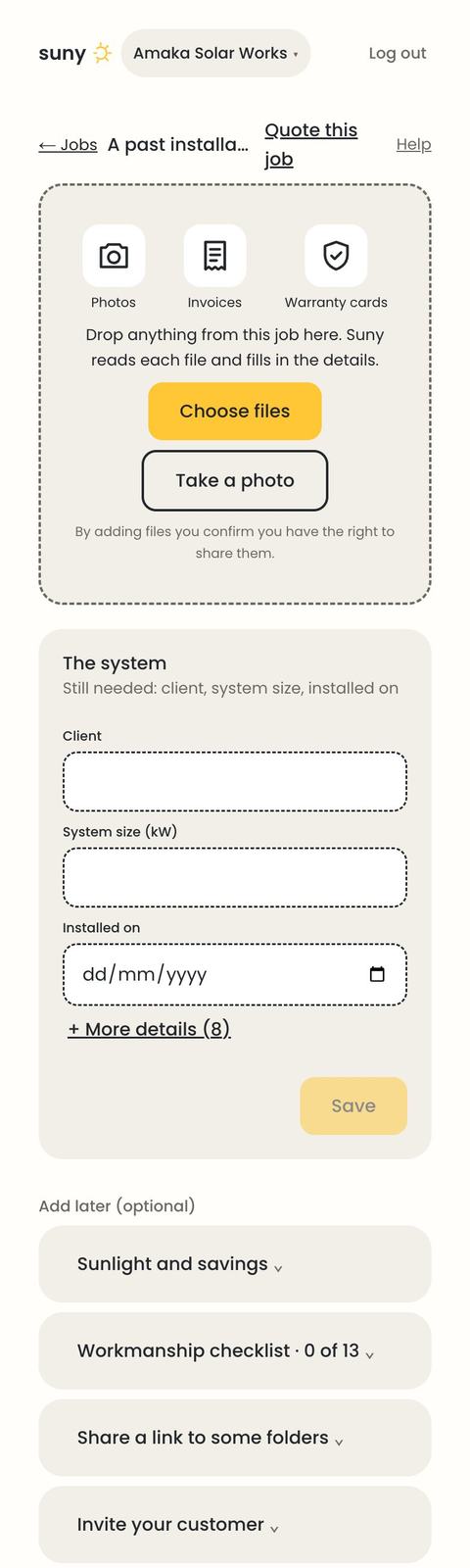
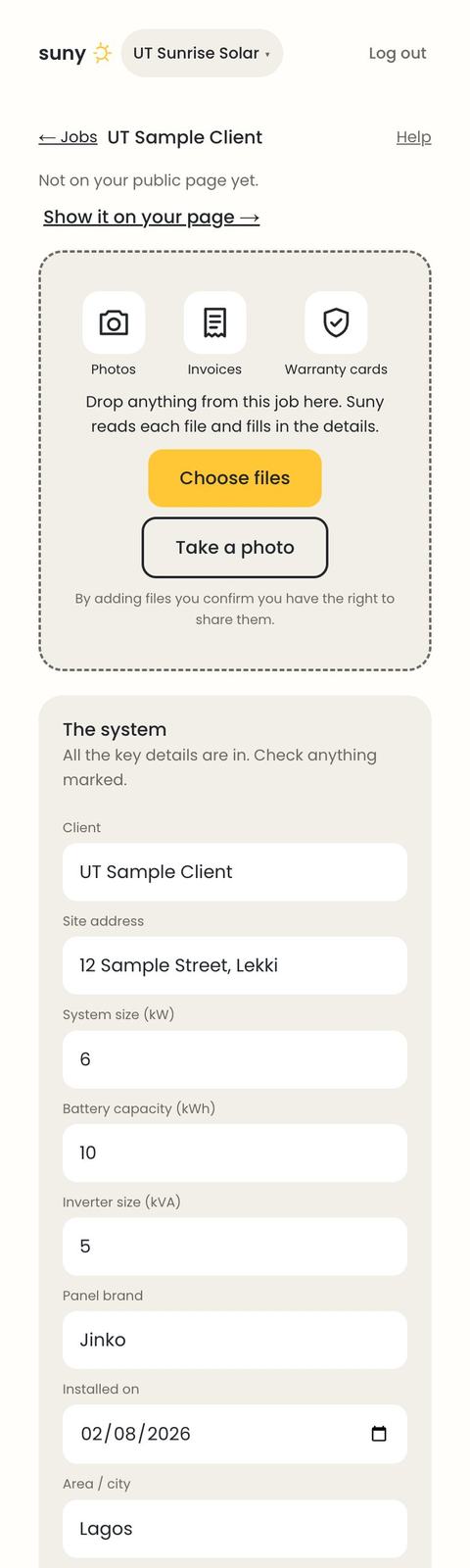
Drop in photos, invoices and warranty cards (or take a photo). Each file shows its status, "Reading…" then for example "Invoice ✓". Suny fills in The system from what it reads and asks only for what's missing; check it and tap Save. Folders sort themselves. Sunlight and savings, the checklist, sharing and inviting the customer are under Add later.
Site surveys
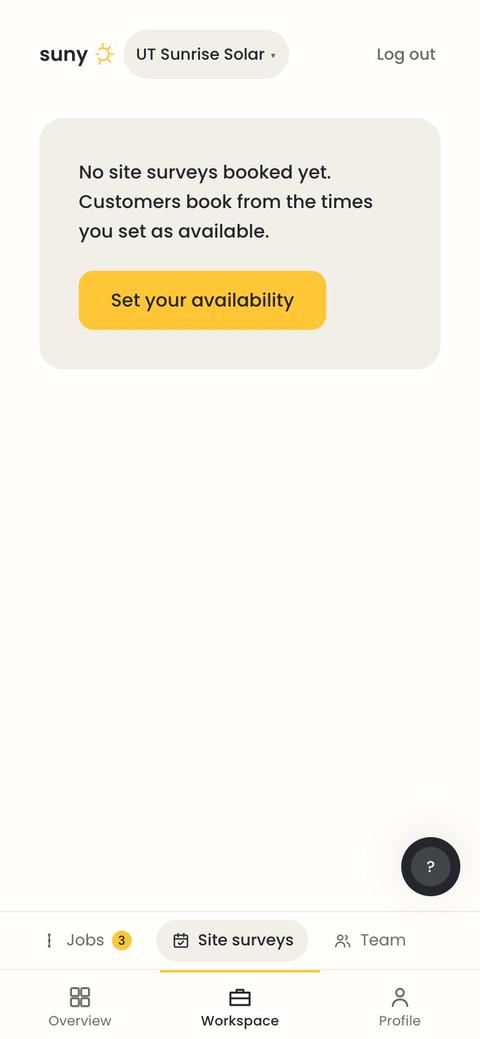
Customers book a free survey in your hours. On the day, check in at the address, take at least three roof photos (each stamped with where and when), then write the final proposal from what you found.
Market prices
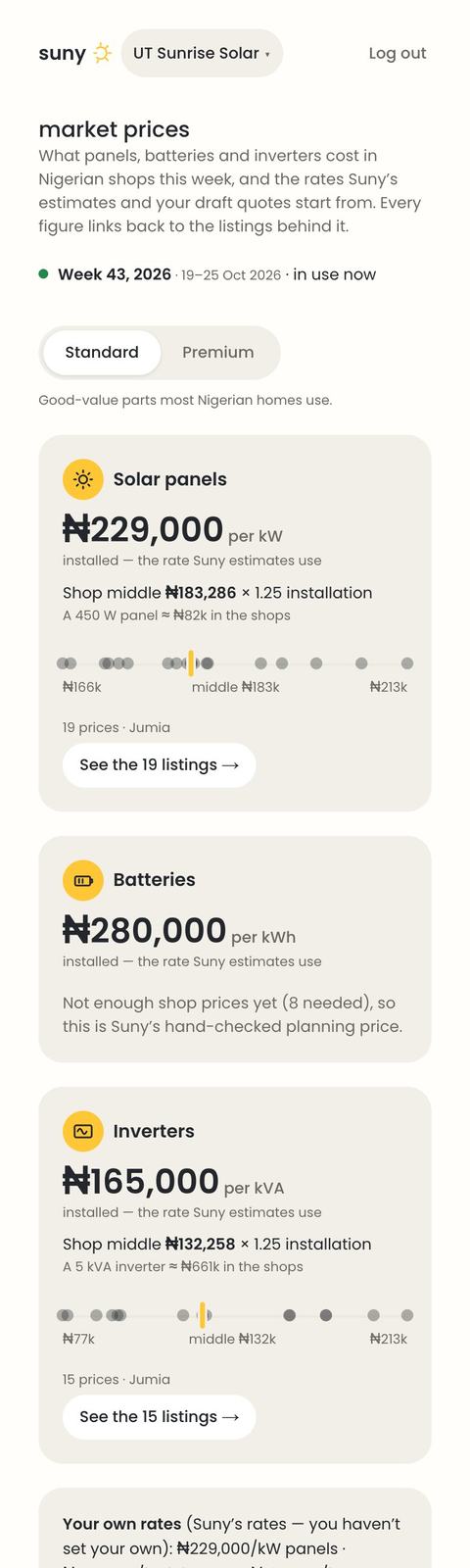
What panels, batteries and inverters cost in Nigerian shops this week ("Week 43, 2026"), the rate Suny's drafts start from, the spread of shop prices, and every listing with its photo. Standard and Premium tabs.
Your team and your public page
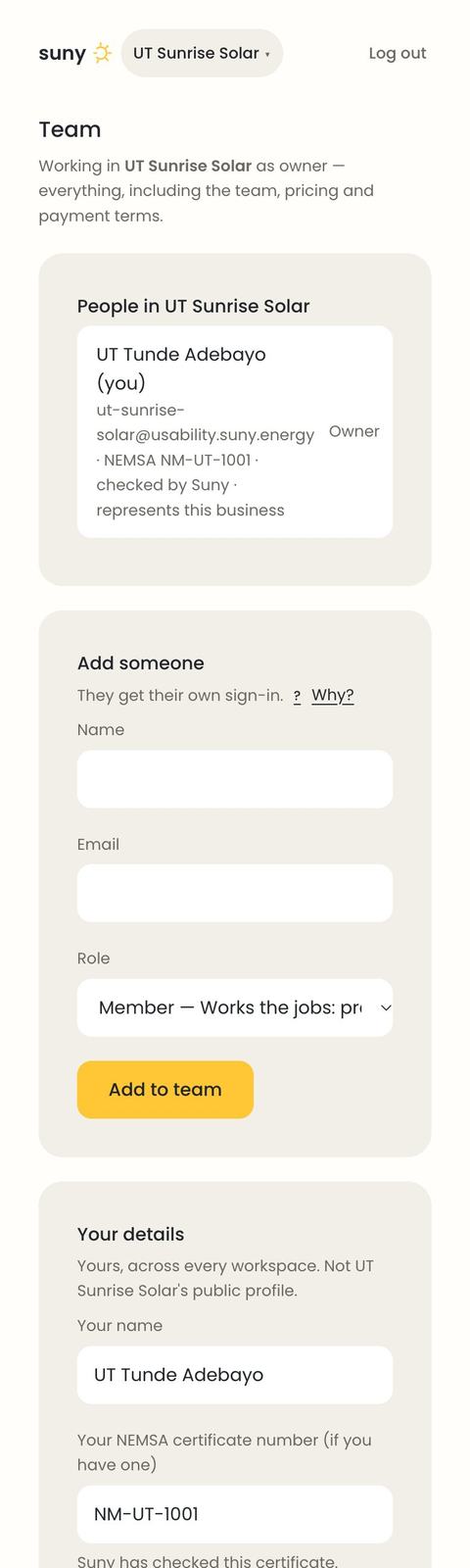
Team: everyone in the workspace with their role (owner, manager, member). Add someone by email; anyone new gets an email to set a password, or can continue with Google. Your details holds your own name and NEMSA certificate.
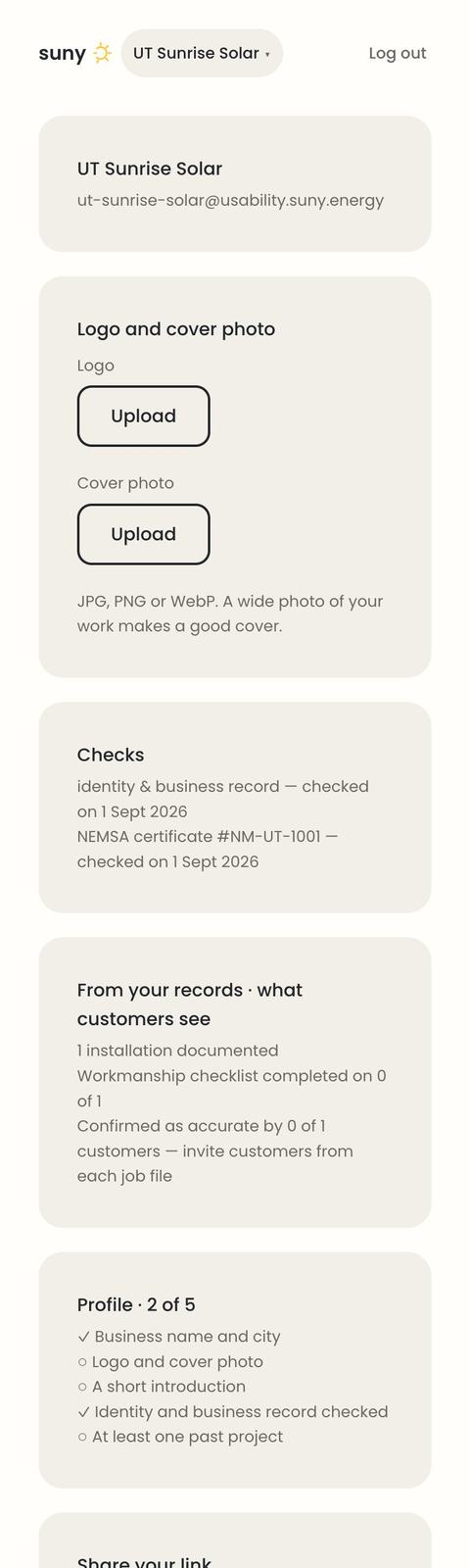
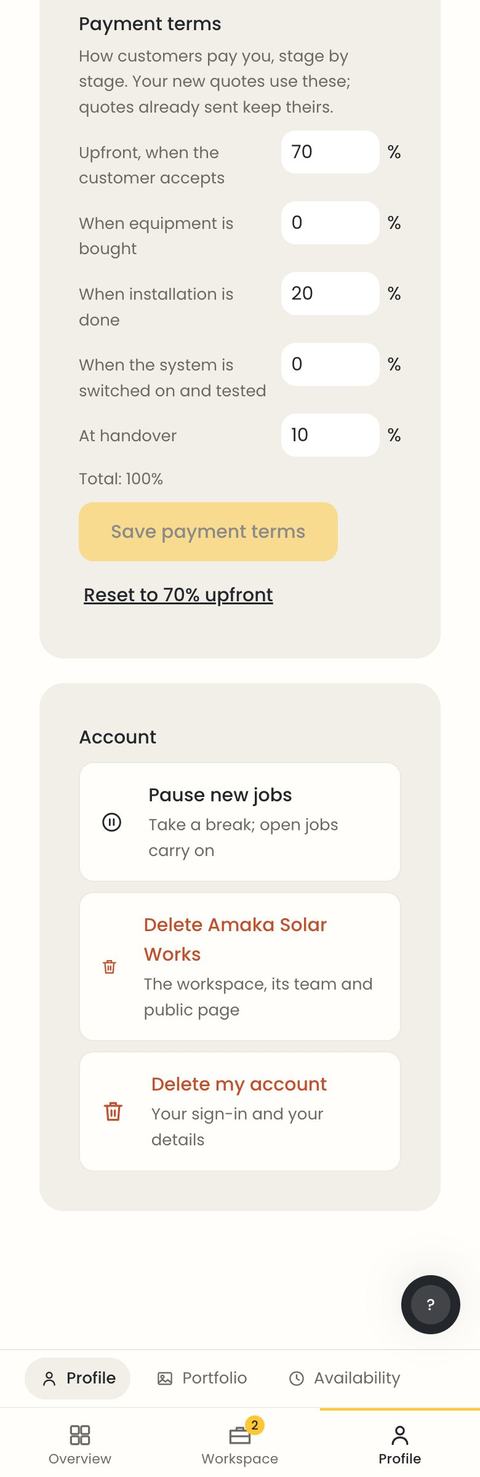
Profile is your public page: logo and cover photo, the checks Suny has done, your record, introduction, payment terms, and your share link and badge.
Pause or delete
At the bottom of Profile, the Account card has three buttons, each with a short confirm step:
- Pause new jobs: Suny stops matching you and hides your public page; open jobs carry on. Resume any time.
- Delete the workspace: owner only, and blocked while a job has money or a survey in flight, with a list of what to finish first.
- Delete my account: your sign-in and personal details.
Getting help
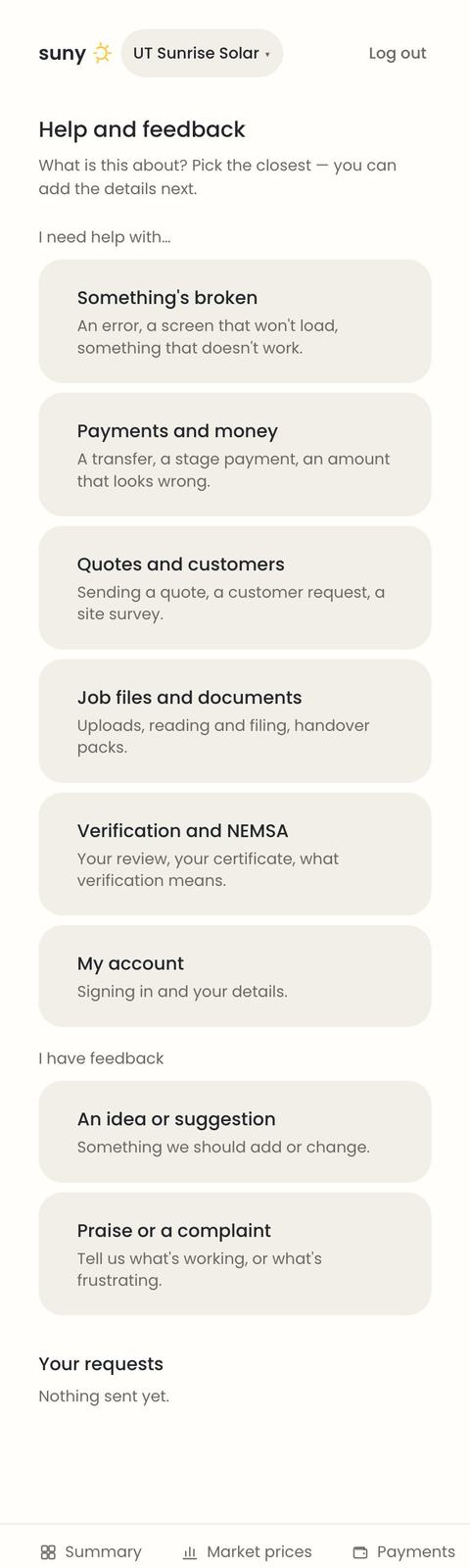
The round ? on every screen opens help without leaving the page. Help lists topics and your past requests; pick a topic and say what's happening; replies show up there.